Article Withdrawal Procedure
Important
This procedure applies to the article which have not yet been published in the issue.
Only articles which have been published in Advance Online Publications (as well as in so-called “Hidden Advance”) are in scope of this document.
Oncotarget
Depending on whether article, which is a subject to withdrawal, is published in Advance Online Publications (i.e. publicly available) or is published in so-called “Hidden Advance” (i.e. accessible only by corresponding author), the porcedure will vary.
The diagram below shows the steps in detail:

- Step 1.
- Justin receives a withdrawal request (letter) signed by all authors.
- Step 2.
- Justin forwards that withdrawal request to Zoya for confirmation.
Zoya confirms the request by sending email to Justin. - Step 3.
Upon receipt of confirmation from Zoya, Justin withdraws article in JPS.
*Steps in JPS.*

In “Advanced Manuscript Tasks” (on the article page), click on “Withdraw / Unwithdraw Manuscript”.

Specify “Withdraw Reason” and type in “Withdraw Comments”. Click on “Withdraw” button.
- Step 4.
Justin adds MS number (and other detals) of withdrawn article on the “WoS papers” tab of “Pending Issues Vol 8/9” spreadsheet (https://docs.google.com/spreadsheets/d/1eARSldeOudamoymUEy2-Q8HrEO3E-91br7MK8Fq_elM/edit#gid=755529392). The “Production Status” is set to “WITHDRAWN”.
*”Pending Issues Vol 8/9” spreadsheet.*

- Step 5.
Justin checks whether article has DOI registered for the article in question (i.e. whether article has been published in “Advance Online Publications”).
*How to check whether article has DOI registered:*
a). Type in (possible) article DOI in browser address field and press “enter”. You can compile DOI by adding article PII to the following link: https://doi.org/10.18632/oncotarget.<PII here>.
For example, DOI for PII 25832 is https://doi.org/10.18632/oncotarget.25832b). If you get “DOI Not Found” page, then DOI has not been regisered for the article. Any other result would mean that artcile has DOI.
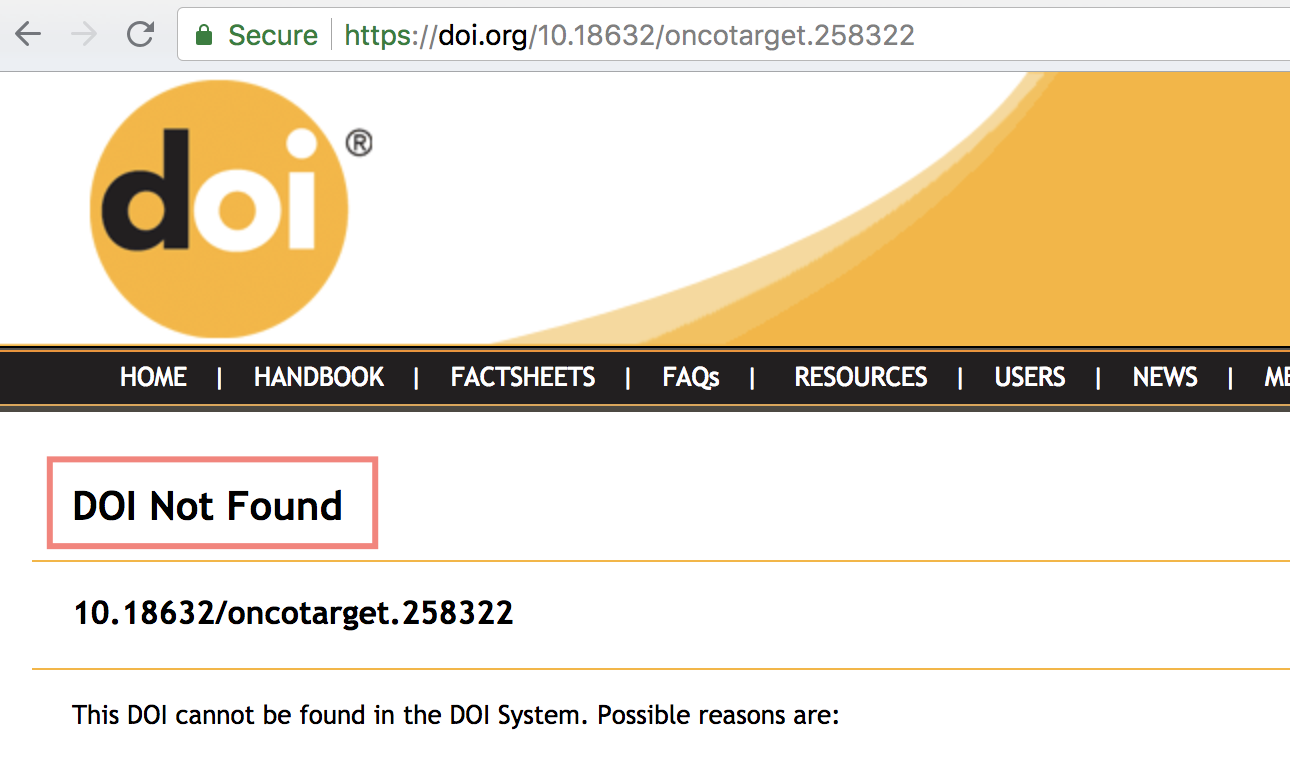
If article has DOI, then go to Step 6A. Otherwise go to Step 6B.
- Step 6A.
Follow this step if article has DOI registered.
Justin withdraws article from OJS.
*Steps in OJS.*

On “Editing” tab of the article in “WITHDRAWAL” section, type in withdrawal reason (or modify one of the suggested ones) and click on “Withdraw Article” button.
This step will put the artcile to special “Withdrawn” issue and update DOI meta data to reflect the fact that article has been withdrawn.
- Step 6B.
Follow this step if article does not have DOI registered.
Justin assigns the article to “Deleted” issue is OJS.
*Steps in OJS.*
On “Editing” tab of the article in “SCHEDULING” section, select “Deleted” from the list of the issues and click on “Record” button.
- Step 7.
- Justin sends withdrawal confirmation letter to corresponding author, the assigned production team, and the editorial office.